Skip to content

Features

What a PMO needs, in one place

KPIs, change requests, risk assessment, meetings, roles, documents and weekly reports. Every feature below is shown with the real PAD screen.

See it in the app

KPIs and earned value calculations

Every project has KPIs, Schedule, Suggestions and Team tabs. SPI, CPI, CV and SV are calculated for you, next to overall health, leading indicators and lagging results such as milestones completed.

  • SPI, CPI, CV and SV calculated from your budget phases and the planned schedule
  • Budget and earned value (EV) calculated from your budget phases
  • Scope changes logged as change requests with schedule, cost and scope impact
  • Schedule with milestones and SPI, and Primavera P6 or SAP-PM file import
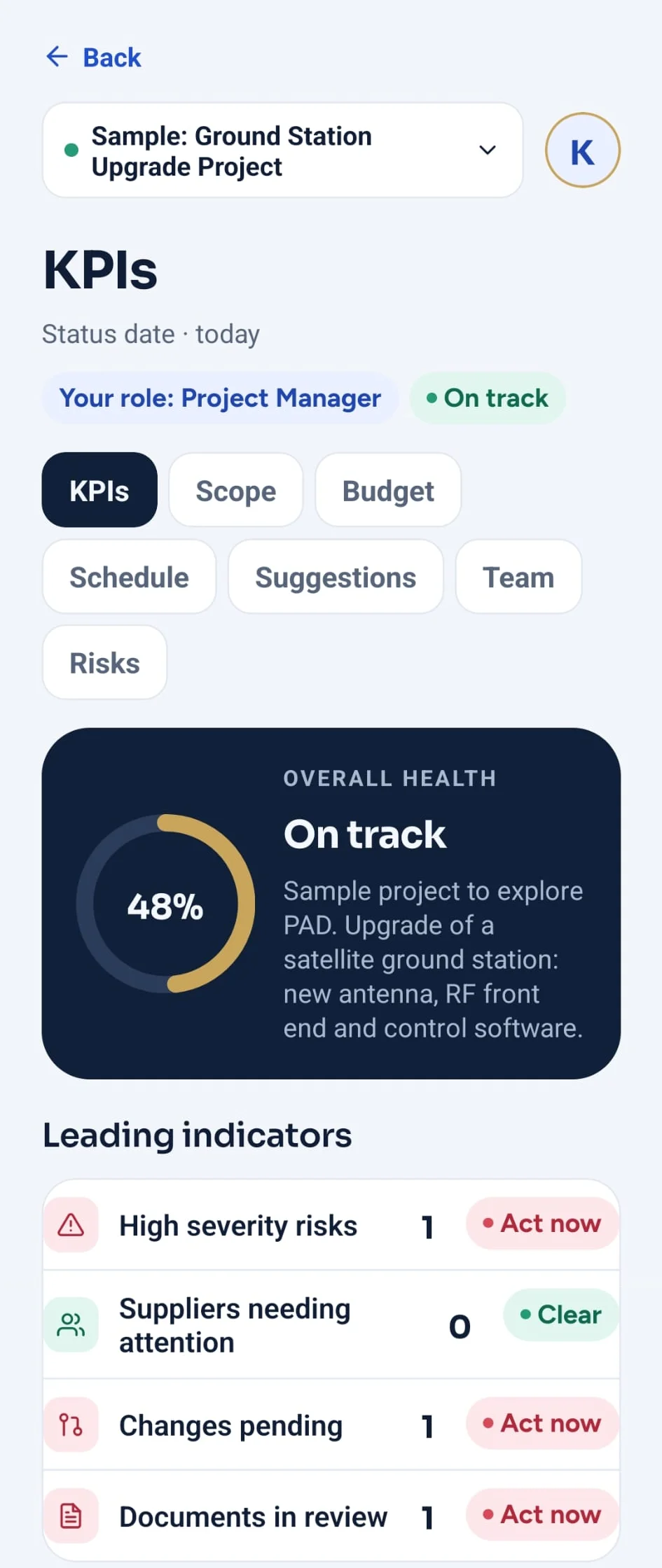
PAD project KPIs with overall health, leading indicators and lagging results

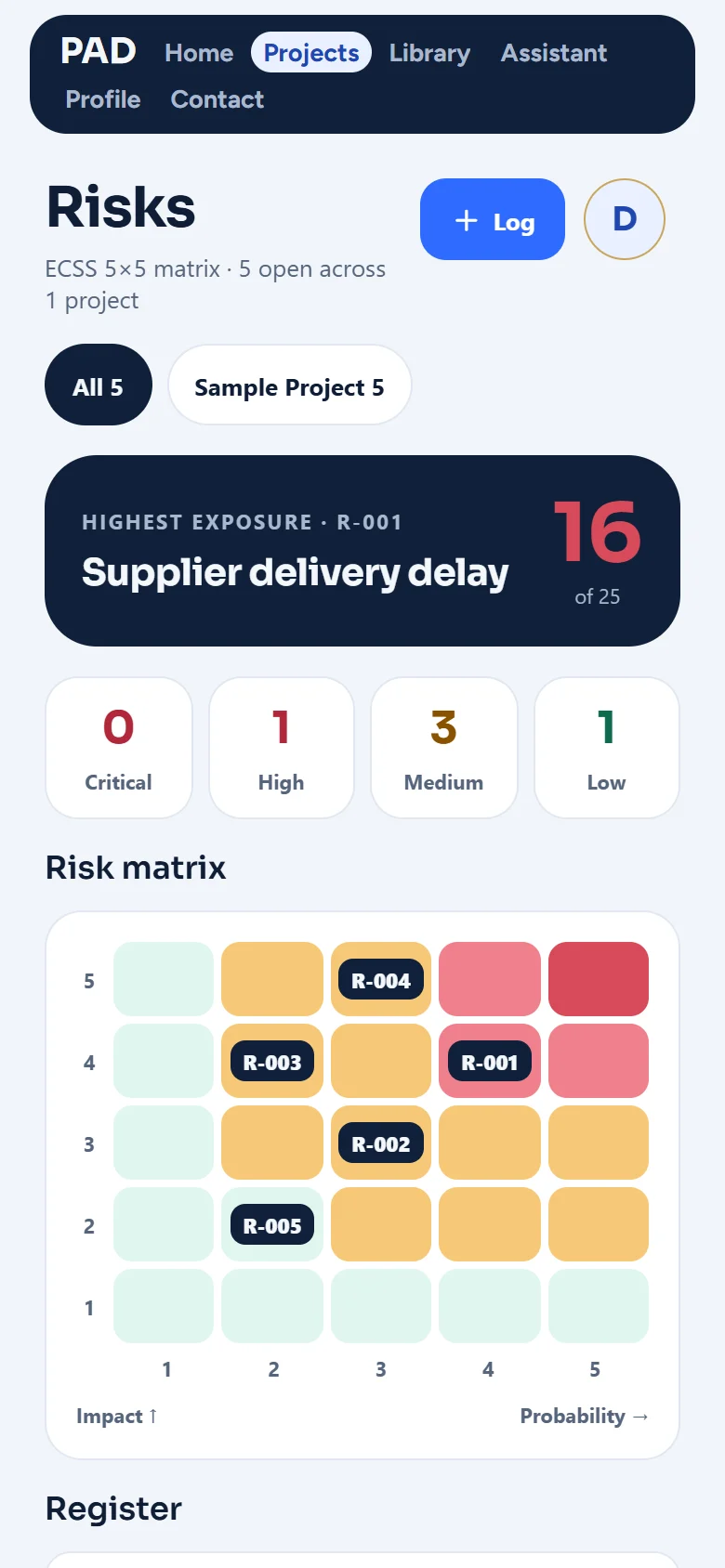
A 5 by 5 risk assessment with a risk matrix

Assess what could go wrong with a description, a mitigation plan, probability and impact from 1 to 5, and place it on the risk matrix. The Risks screen shows the highest exposure first and can generate a risk register report.

  • The highest exposure is shown first, with its score out of 25
  • Counts by severity: critical, high, medium and low
  • Probability times impact places every risk on the matrix
PAD Risks screen with the highest exposure, severity counts and the probability and impact matrix

All projects in one list

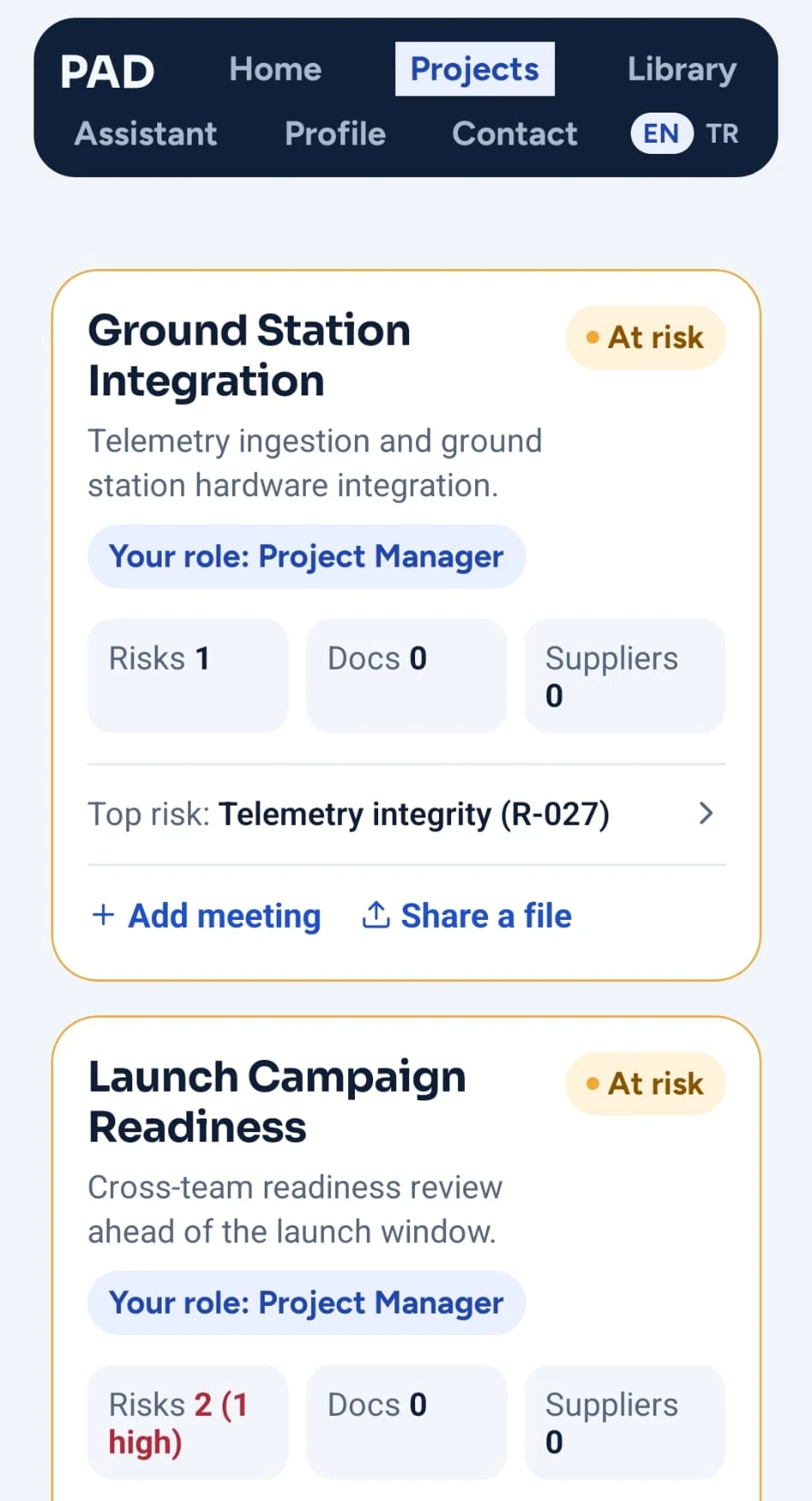
Search your projects and filter them by All, At risk, On track or Completed. Each card shows your role and the number of risks, documents and suppliers. To evaluate PAD with your team, add the ready made sample project.

  • Search and status filters
  • Role shown on every project
  • Sample project with milestones, risks, budget, suppliers and documents
PAD Projects screen listing all projects with status, your role, risks, documents and suppliers

Meetings at the top of the project

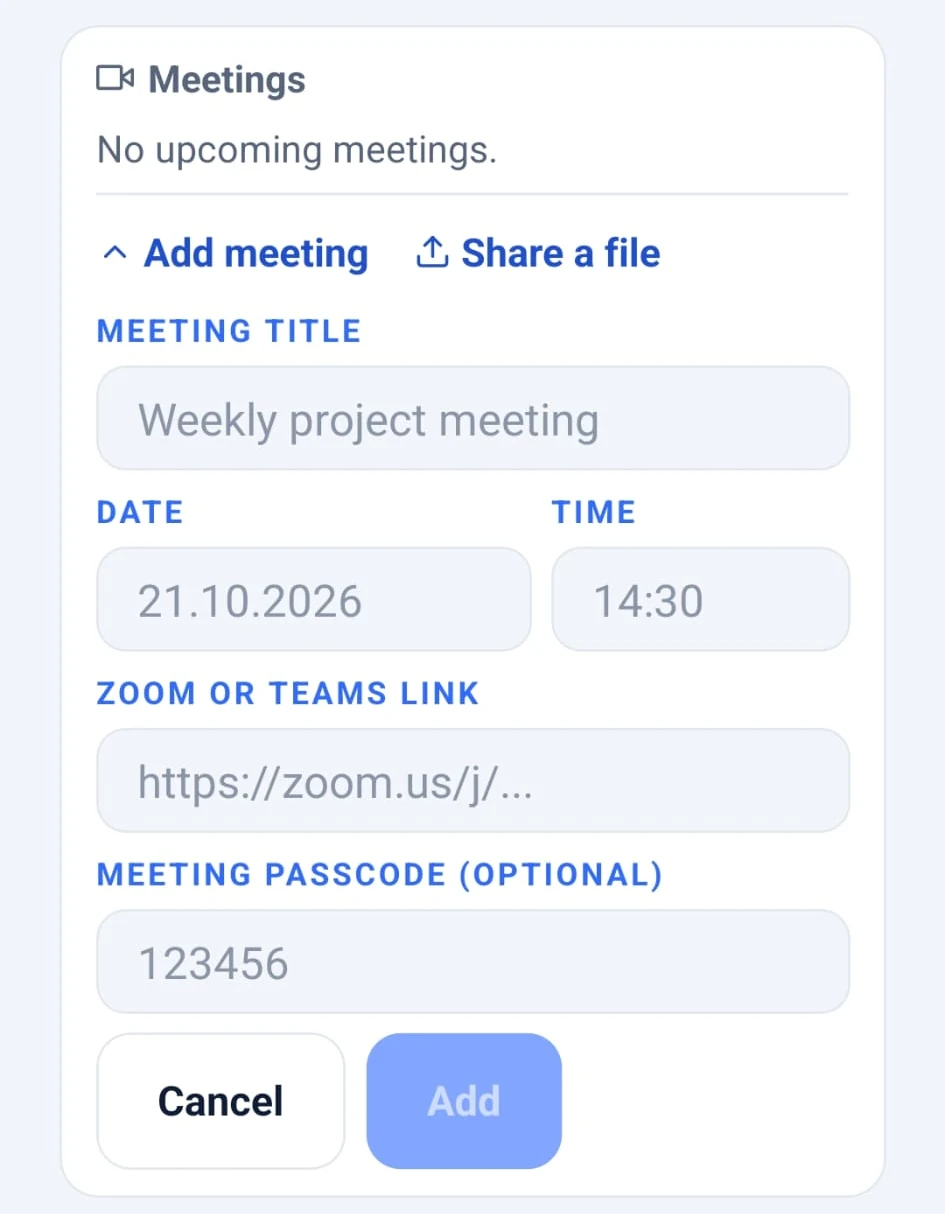
Add a Zoom or Microsoft Teams meeting with its link and passcode. The next meeting appears on the project and on the Projects list, one tap from joining.

  • Every role can add and join meetings
  • Upload and remove files right next to the meeting
  • Passcode shown with the meeting
PAD project page Add meeting form with title, date, time, Zoom or Teams link and passcode

Roles and invite links for everyone on the project

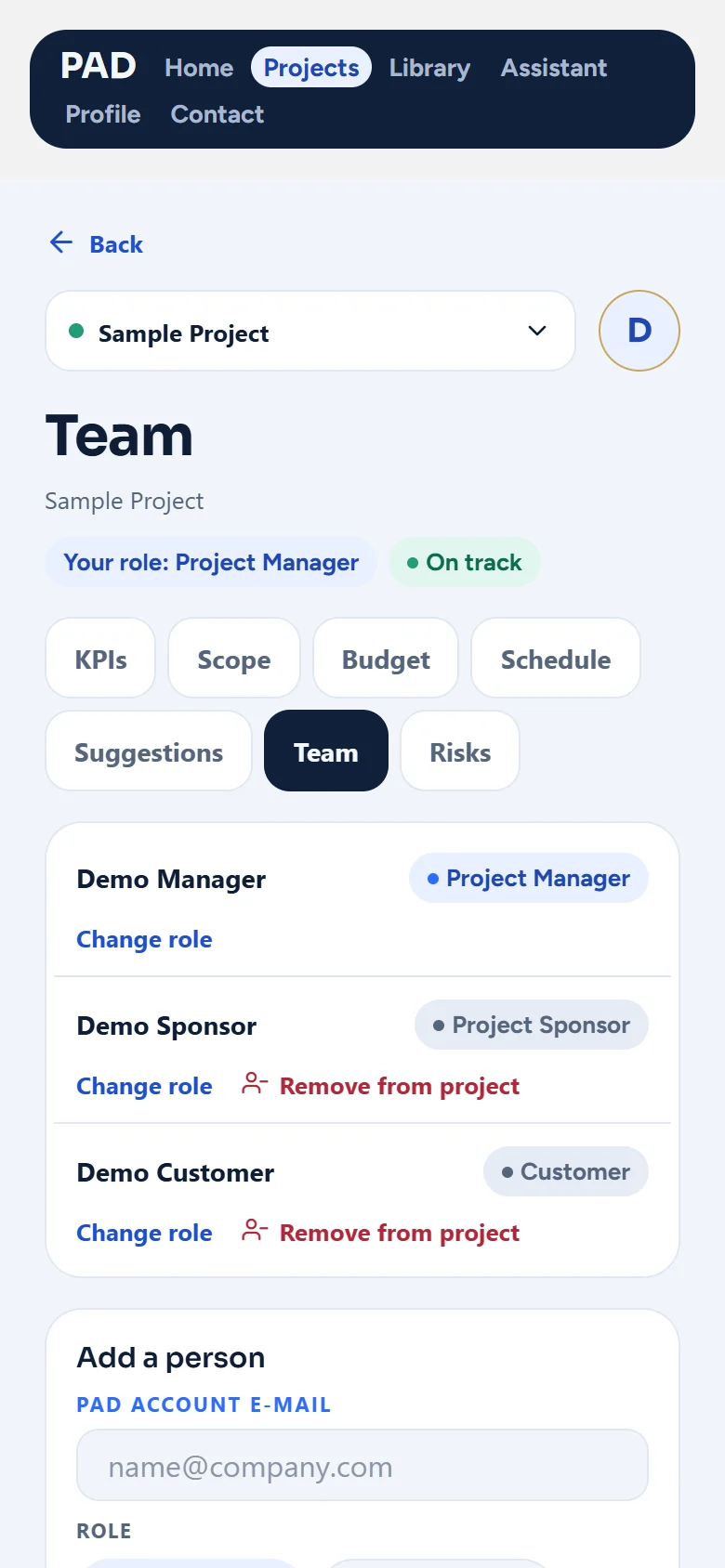
Add people by email or invite link and give each a project role such as Project Manager, Project Sponsor or Customer. The role decides which screens a person sees and what they can change.

  • Assign a role to each person and give each role its own access
  • Change a person’s role at any time
  • Remove people from the project
  • Invite links expire after 7 days and work once
PAD Team tab listing people with their project roles, Change role and Remove from project

A weekly status report from the same data

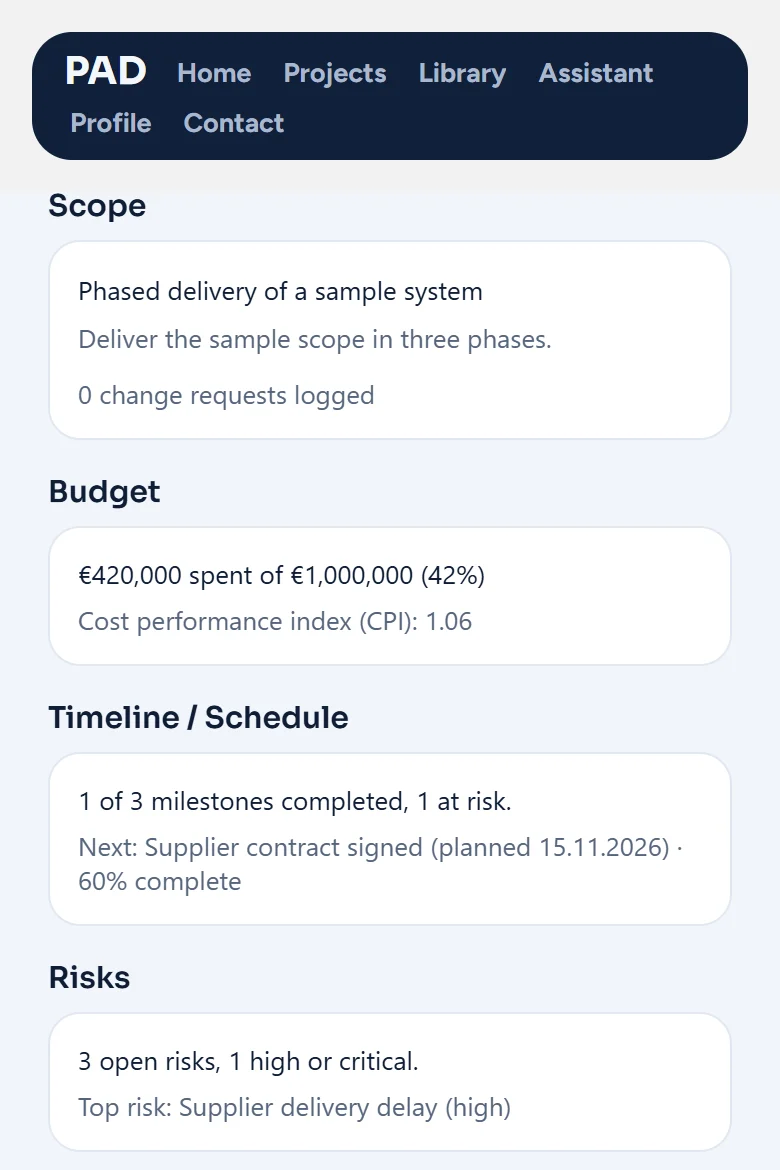
The weekly status report summarises scope, budget, timeline and risks for the selected project, including the next milestone and the top risk.

  • Executive summary, Scope, Budget, Timeline and Risks sections
  • Budget spent and the cost performance index (CPI)
  • Milestones completed and the next milestone
PAD Weekly Status Report with scope, budget, timeline and risks sections

What PAD covers

The daily work of project delivery and oversight, from the first risk to the weekly report.

  • KPIs, SPI, CPI, CV and SV

    Earned value calculations, overall health, leading indicators and lagging results for every project.

  • Risk register

    Probability, impact, severity, owner and mitigation, with the highest exposure shown first.

  • Projects and milestones

    Status, progress, schedule and budget by phase on one project page.

  • Meetings

    Zoom or Microsoft Teams meetings with link and passcode, open to every role.

  • Team, roles and invites

    Invite people by link and give each a project role. The role decides what they can see and change.

  • Library

    Documents with a review status, and your suppliers, in one place.

  • Assistant

    Ask about a project in plain words, such as What is the biggest risk? Answers rely on your real project data.

  • Weekly status report

    Executive summary, scope, budget, timeline and risks, ready from the data you keep.

  • Schedule import and export

    Primavera P6 (XER or XML), SAP-PM Excel and CSV files.

  • Quick start guide

    A short guide on first use shows how to add a project, record risks and invite the team.

  • English and Turkish

    The whole app, and this website, in both languages.

How teams start

  1. Try it on the web

    Create an account and add the sample project to see every screen working.

  2. Invite your team with roles

    Send invite links and give each person a project role. Sponsors, customers and team members each get the right view.

  3. Report every week

    Keep risks, milestones and meetings current and open the weekly status report from the same data.

See PAD with your team

Tell us about your projects and your team and we will arrange a meeting.